
Opening a cafe, cottage food business, bakery, or food truck already comes with enough decisions. Your technology should help you serve customers, not keep you stuck behind a dashboard for months.
Square can bring your payments, menu, online orders, and customer relationships into one place. The trick is understanding how those pieces depend on each other. If you start by entering every coffee and pastry before you have thought through your settings or menu structure, you may spend more time backtracking than building.
You do not need to master every Square feature before opening. You need a dependable foundation, a clear way for customers to place orders, and a way to confirm that orders reach you correctly. The full Square cafe masterclass above shows the screens and decisions in detail. Here is the bigger picture to keep in mind as you build.
Start with the settings that everything else relies on
Your Square account begins with your business details: name, location, category, and legal business information. These are not just fields to get past. Square uses your business category to recommend relevant features, so a coffee shop should choose the food and drink category that best describes what it primarily sells. That gives you a more useful starting point than a retail or service setup.
Your location details deserve the same attention. Your address, contact information, hours, time zone, and business description affect what customers see and how orders are scheduled. If you run a mobile business or do not want your physical address displayed on receipts and invoices, review the address visibility option during setup.
Some choices can be updated later. If you do not have a branded email yet, for example, do not let that stop you from creating your account. A business email is worth adding because it makes another customer touchpoint feel consistent with your brand, but getting started matters, too.
Once inside Square, think of Account and Settings as the foundation. This is where you review security, locations, receipts, taxes, payment methods, banking, notifications, fulfillment, and devices. If a setting here is wrong, the problem often shows up somewhere else later.
Protect your owner account with email verification and two-step verification. Set your personal point-of-sale passcode as well. When you add staff, give them their own access and permissions rather than sharing your owner login. That way, you can control what each person can manage without handing over the keys to your entire business.
If you have already created an account but suspect something important was missed, a Square Setup Audit can help you identify what needs attention before you build further.
Make Square recognizable to your customers
Your brand should not disappear when someone moves from your counter to a digital receipt or an online order. Square lets you add your logos, brand color, and register image in one place, then preview how they appear across receipts, invoices, payment pages, and the point of sale. If you have more than one location, check which locations receive that branding.
Receipts are especially easy to overlook. Along with your logo, they can display your business contact information, social links, item details, and return policy. Digital receipts give customers a way back to your business after they have left. Preview the printed version too, since a logo that looks great in color may not read as well in black and white.
Branding is not only visual. A clear business description, accurate hours, and useful pickup instructions all tell customers they are in the right place and know what to expect. When you later add your ordering page and website, those early choices help the experience feel connected.
Build a menu that works at the counter and online
The item library is where many food business owners lose momentum. It is tempting to open a blank item screen and start adding drinks one at a time. Square allows you to reuse multiple options for your business, so you don’t have to add the same options over and over.
Which includes:
Categories organize what you sell, such as hot drinks, iced drinks, pastries, breakfast, and lunch. They also influence how items appear on your point of sale and how you review category sales. Put the categories staff need most where they can find them quickly.
Options and variations describe versions of an item, such as a small, medium, or large drink. Modifiers describe choices added while ordering, such as milk, sweetness, syrup, or an extra espresso shot. The distinction matters: you want a customer to choose a cup size and then customize the drink, without creating a separate item for every possible combination.
Reusable modifier sets are particularly helpful when the same choices apply to several drinks. You can decide whether a choice is required, whether customers can choose more than one, and whether an add-on changes the price. The order in which those choices appear also matters because customers and staff will use them when placing orders.
Each item needs more than a name and price. Consider its customer-facing description, image, taxes, allergens, availability, preparation time, and the locations and channels where it can be sold. For prepared food, allergen information is not a detail to leave until the end.
If you have a large menu, Square’s CSV import can save you from entering every item individually. Creating a representative item first gives you a more useful example when you export your library and work in the spreadsheet. Review imports carefully: the masterclass shows how a mismatch between an item and its variations can produce an error report. For a focused explanation of menu structure, see how Square categories, options, modifiers, and menus fit together.
After your items are organized, menus can bring the right products together at the right times. A breakfast menu can have different hours than a lunch menu, while an all-day menu can keep your regular offerings available. Remember that adding a new category or item to your library does not automatically guarantee it appears in every existing menu.
Choose an ordering experience your team can actually fulfill
Your Square online ordering profile gives customers a place to browse a menu, choose pickup or delivery, customize items, and check out. It is not the same thing as a full Square Online website. That distinction is useful: you can get ordering in place without waiting until every website page is designed.
The most important online ordering decisions are operational. How long does a typical order take to prepare? How many pickup and delivery orders can your team handle in one time slot? Do your pickup hours need to end before the cafe closes? Should customers be able to schedule ahead? Your answers should reflect how your business works, not just what looks quickest on a screen.
Square provides order limits, cutoff times, scheduled closures, pickup instructions, and curbside pickup options. Those controls help prevent a rush of orders from promising more than your team can prepare. You can adjust your estimates as real orders show you how long drinks and food take.
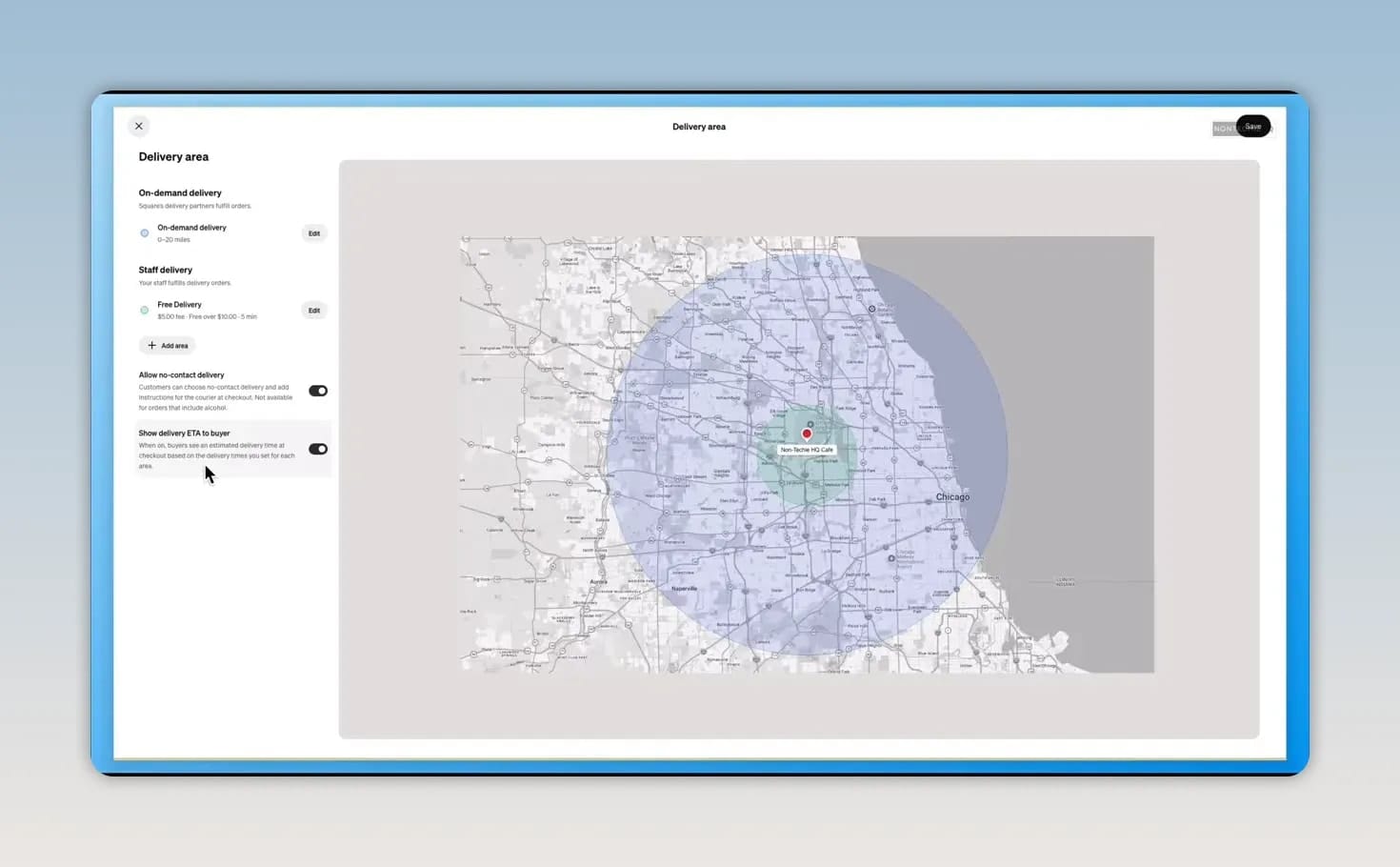
For delivery, decide whether your staff will bring orders to customers, use an on-demand delivery partner, or offer both in different areas. Delivery zones and fees need to make sense for the distance and the work involved. If you use outside platforms, review their fees separately rather than assuming a Square connection makes delivery free.
Test the journey before you call it launched
A menu that looks complete in your dashboard is not proof that ordering works from end to end. Place a test order through the customer-facing page. Choose a menu item with options and modifiers, check its price, select pickup or delivery, and review the items that appear at checkout.
Then return to your Square orders. Confirm that the order arrives with the correct items and details, and follow its progress from preparation to ready for pickup and completed. The masterclass demonstrates how those status updates appear on the customer side as well. This is the moment to catch a missing milk option, an unavailable menu item, or confusing pickup instructions, not when your first real customer is waiting.
A test order also helps you see the difference between a setting that exists and one that behaves the way you intended. If an item appears out of stock on your site, check its website visibility and online fulfillment settings before assuming the item itself is missing.
Give your food business an online home
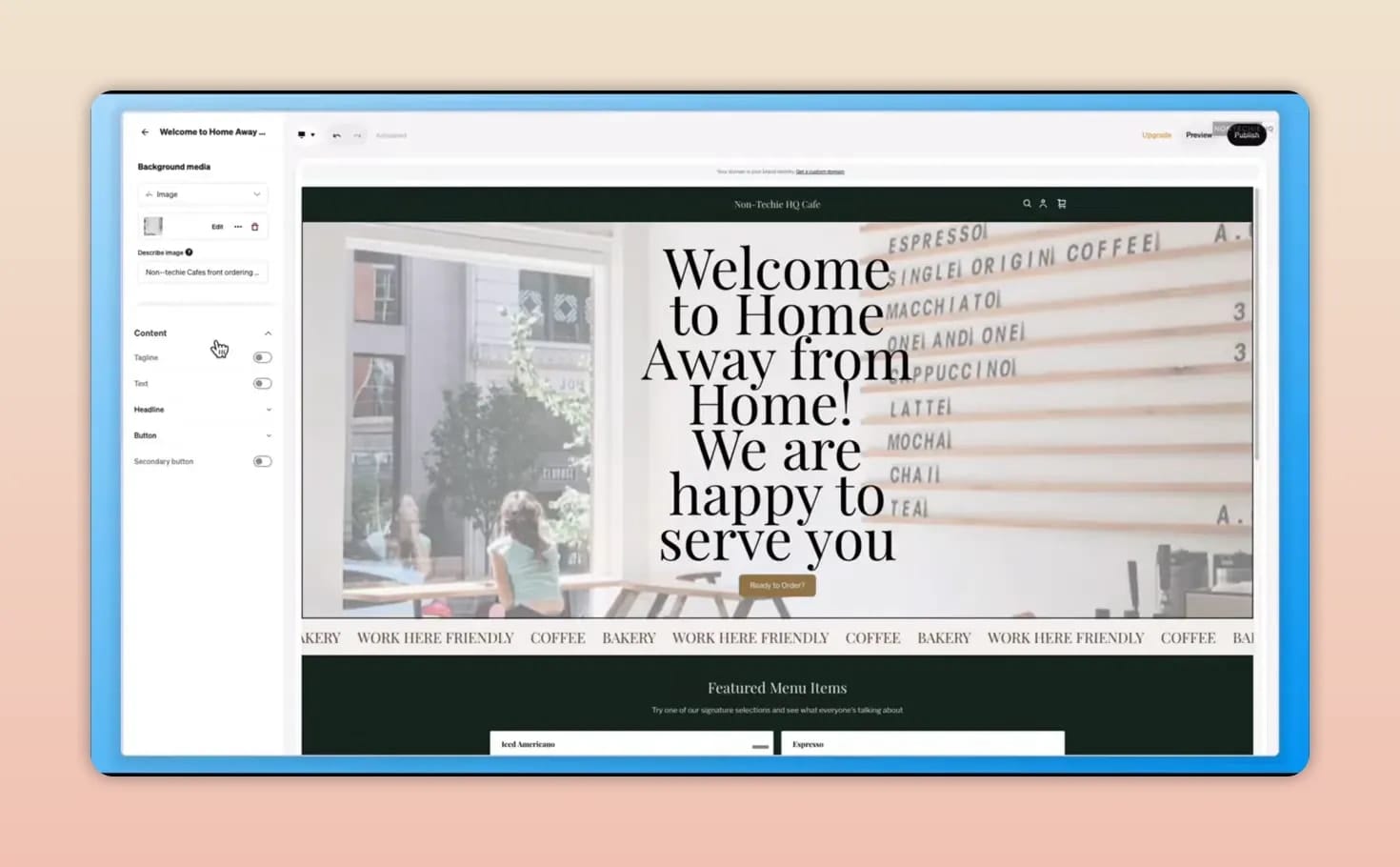
Your ordering profile helps people buy. Your Square Online website gives your business a more comprehensive way to introduce itself. It can hold your home and about pages, menu, contact details, and other content while linking customers to the ordering experience you have already built.
It also gives you a place to work on search visibility. Square Online includes settings for a page title, description, and social sharing preview. Your business description should explain what you offer in your own voice, rather than read like a list of keywords. If you use an AI tool to draft it, edit the result so it accurately reflects your cafe and menu.
You can begin with a Square subdomain. Connecting your own domain and using certain website features depend on your plan, so check the current plan details before committing to an upgrade. Square’s editor lets you preview desktop and mobile layouts, but a beautiful home page still needs working menu links, visible products, and checkout settings that match your fulfillment choices.
Once your site is live, it can serve as an anchor for your Google Business Profile and social pages. If you want more context on what the website contributes beyond an order page, read about building an online store with Square. The full masterclass covers the site editor, domain connection, and the checks that help make products available to order.
Make it easier for customers to come back
Getting your first order is exciting. Giving that customer a reason to return is where your Square setup can continue to work for you. Square Loyalty lets customers earn rewards on purchases, with the program integrated with your point of sale and online ordering. Availability depends on your Square plan.
You can shape the program around spending, visits, items, or categories, then choose rewards that fit your business. That might mean a discount or a free item after a customer earns enough points. Keep the reward easy to understand and worth coming back for. A complicated program may look impressive on the dashboard but be hard to explain at the counter.
Square also brings loyalty activity, rewards, and reporting into one place. Marketing features can help you tell customers about the program and remind them when a reward is close or available. Promotions and tiers give you more options later, but you do not have to launch every possible incentive at once. Start with a program you can confidently offer and maintain.
If ongoing menu changes, online ordering, and troubleshooting become more than you want to manage alone, monthly Square support for food businesses is available. The goal is the same whether you handle it yourself or get help: make the technology work for your business rather than becoming another obstacle.
You do not need every optional integration to open your doors. Get your business settings right, make your menu easy to understand, provide customers with a reliable ordering path, and test the entire experience. Then you can build on that foundation with a website, marketing, and loyalty when those tools have something solid to support.
Hopefully, this startup guide helps you get started with your new food and beverage business!